
User Reference: Setup - Schedule
The schedule allows you to set up automatic archiving. Click on the plus icon to add a new schedule.
The schedule period can be one of the following options:
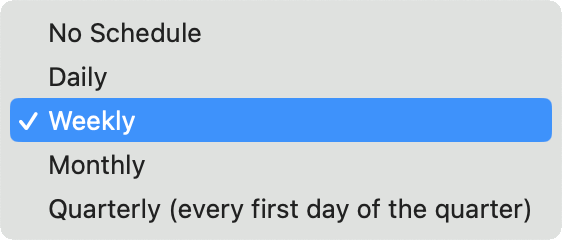
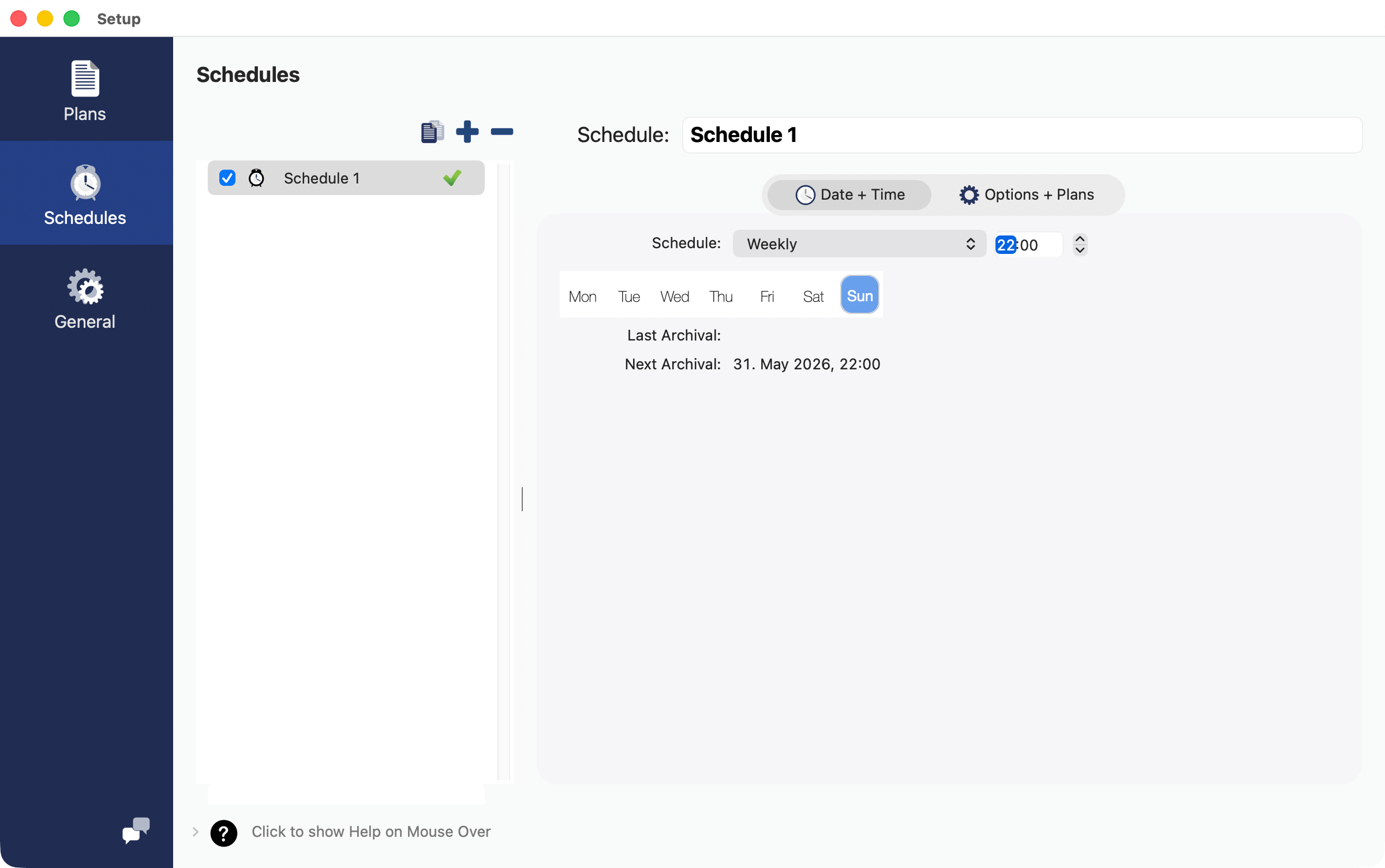
For daily archiving you can only set the time. If you want to archive weekly you can also select the day of the week:
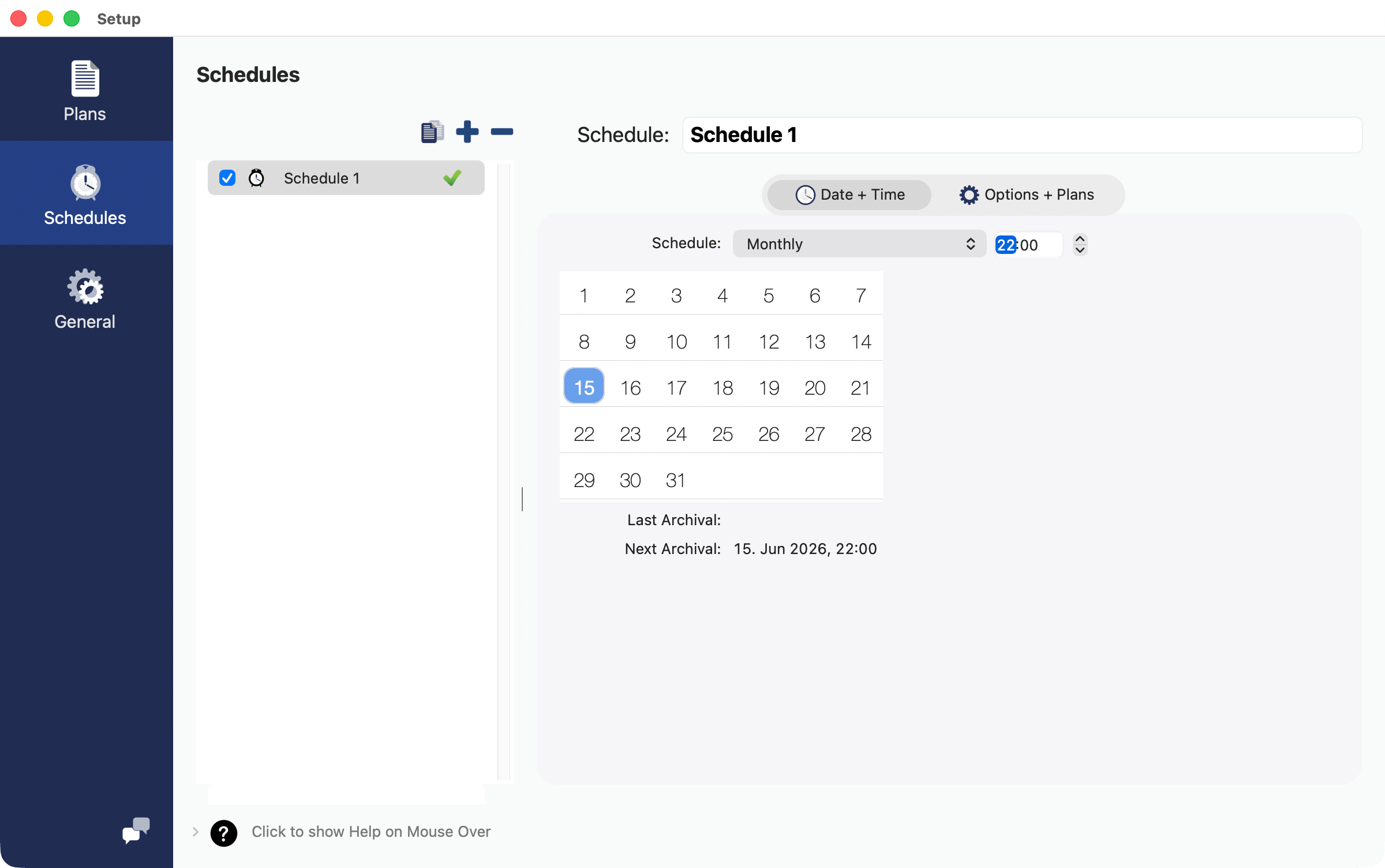
For monthly archiving you can select the day of the month:
Additionally, there are some options for each schedule.
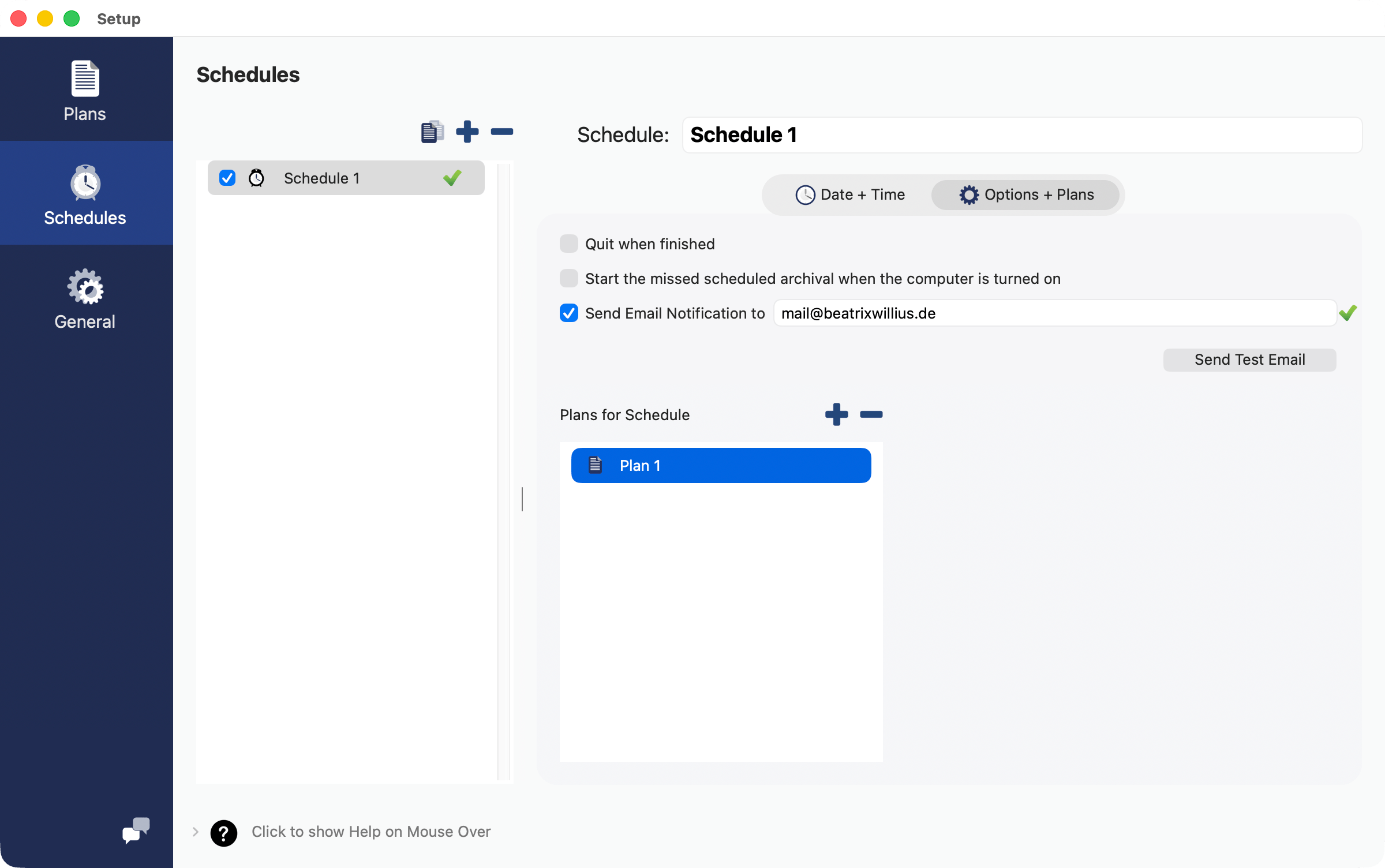
Select “Quit when finished” when you want MAX Messages to quit after the scheduled archival is finished.
When your computer was turned off when an archival was scheduled you can catch up with the schedule with the last option “Start the missed schedule”.
With “Email Notification” you can send yourself an email after the schedule has finished. To do this you enter one or more valid email addresses. Use Send Test Email to send yourself a test email.
Click on the plus button next to “Plans for Schedule” to add one or more plans to the schedule. Only active plans can be added to a schedule.
Schedule fully set up
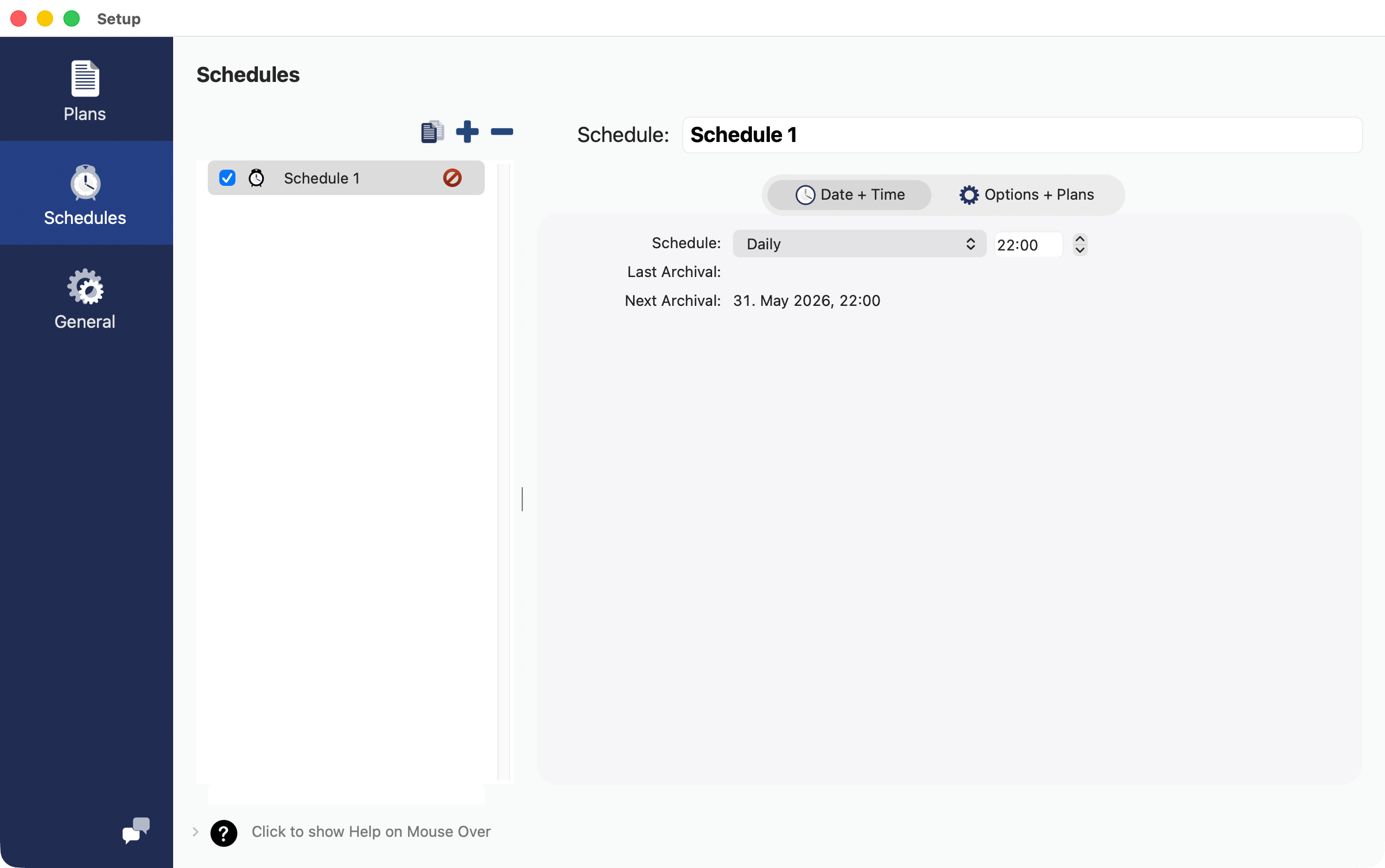
The first thing to check is if the schedule is fully set up. If you see a red icon then something is missing. In the screenshot below the plan for the schedule needs to be added. A green icon shows that the schedule has all necessary information.
Activity Monitor
You can check in Activity Monitor if an app “MAX Messages Scheduler” is running:
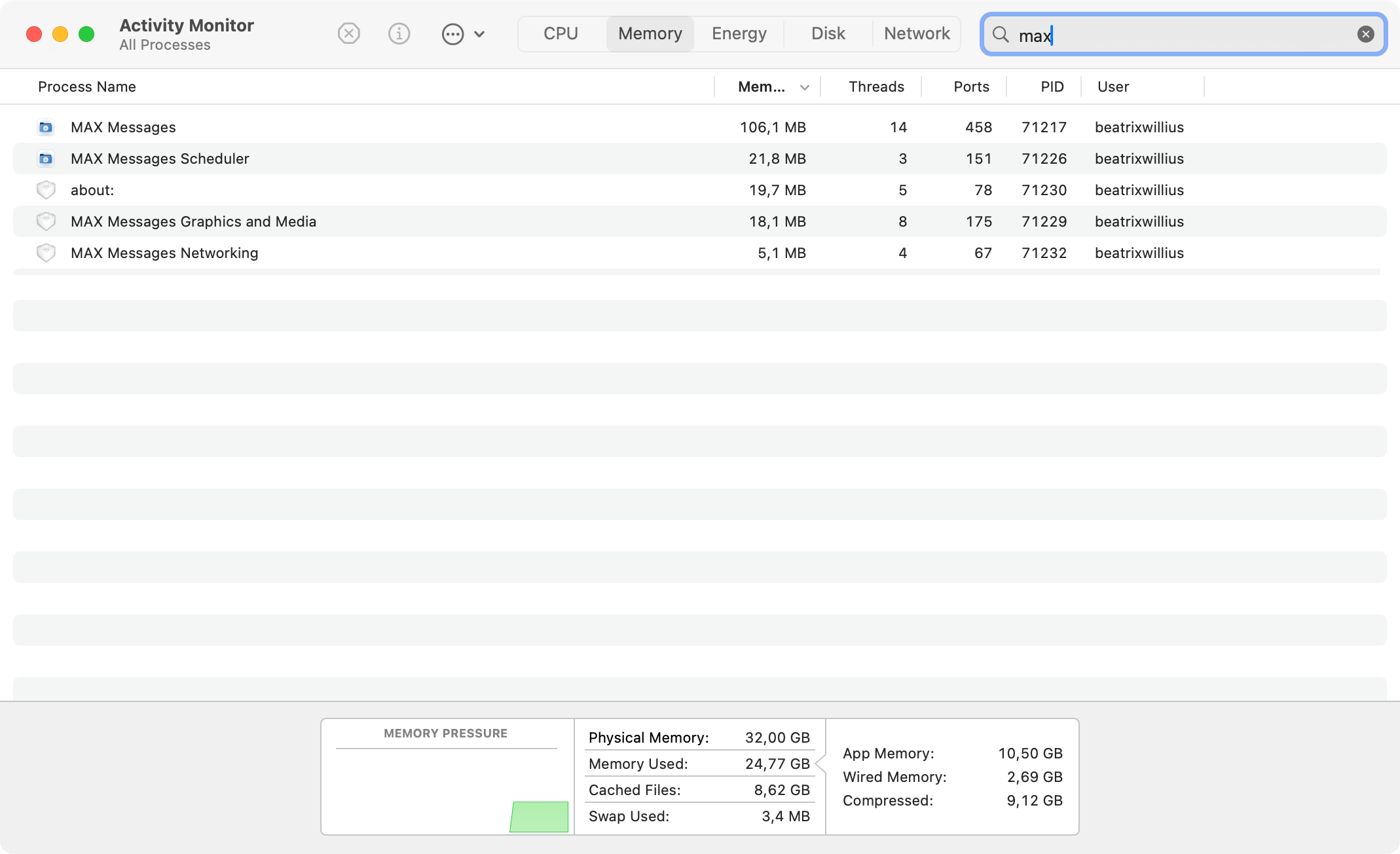
This app will be started in the background after you have set up a schedule and you have closed the Setup window. Without this app the schedule cannot be started.
Reset the schedules
If the schedule doesn’t want to do what you want then you can try to reset the schedules.
Deactivate all schedules.
Important: close the Setup window.
Activate the schedules again.
Now make sure in Activity Monitor that MAX Messages Scheduler is running.
macOS Security
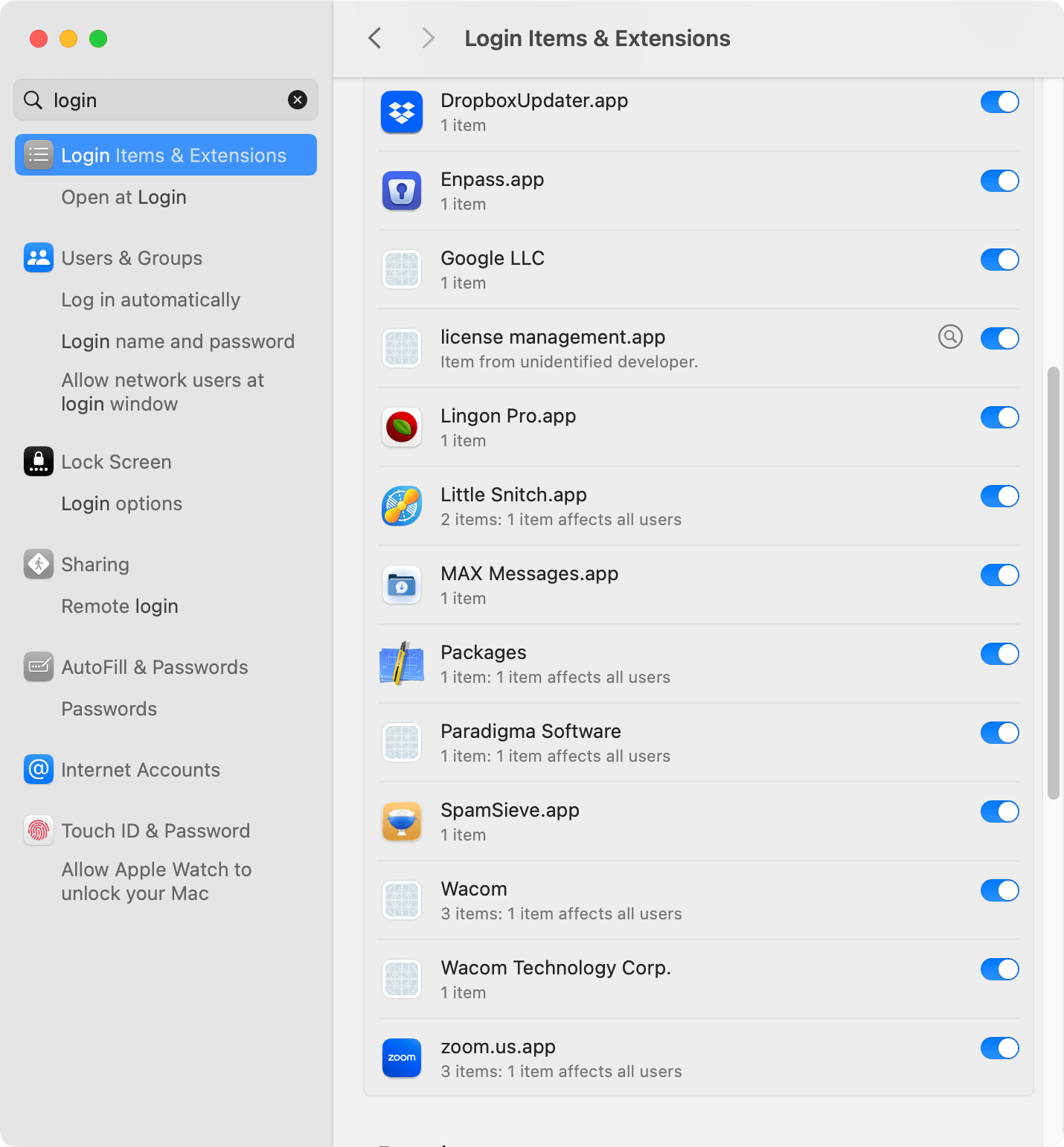
Since macOS Sequoia it’s possible to block an application from loading login items. In System Settings -> General -> Login Items & Extensions make sure that the login item for Mail Archiver is active and not blocked. The information is in the lower part of the System Settings and not in the upper part!
MAX Messages checks if the helper app is running. If the helper app can’t be loaded then you will see this error message:
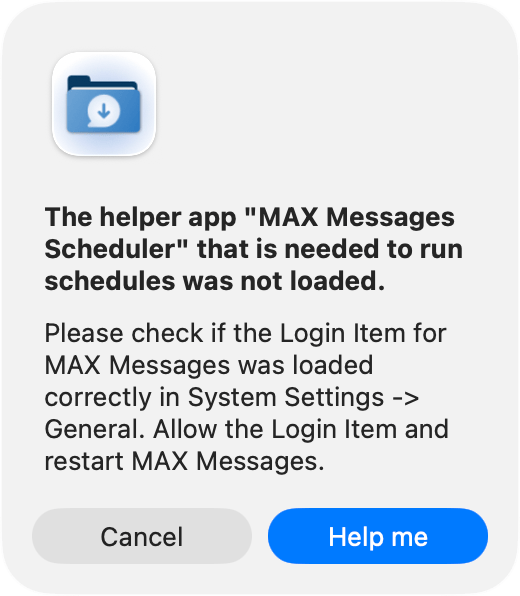
If you click on the Help Me button MAX Messages will open the System Settings for the Login Items & Extensions so that you can unblock the login item.